
Extract data from a capture
The number you need is on screen but not selectable: a receipt in an email, a total in a dashboard, a table in a PDF someone sent as an image. This workflow turns pixels back into text you can paste.
The steps
Section titled “The steps”-
Capture — as it crosses your screen. Whenever a receipt, invoice, or confirmation appears, ⌘⇧C it. For a long statement, scrolling capture (⌘⇧W) stitches the whole page into one image.
-
Extract — open the capture and hit Extract Structured Data. Tables, line items, totals, dates, and vendor fields come out as clean, copyable text. The result is cached in the
.seal, so re-opening it is instant.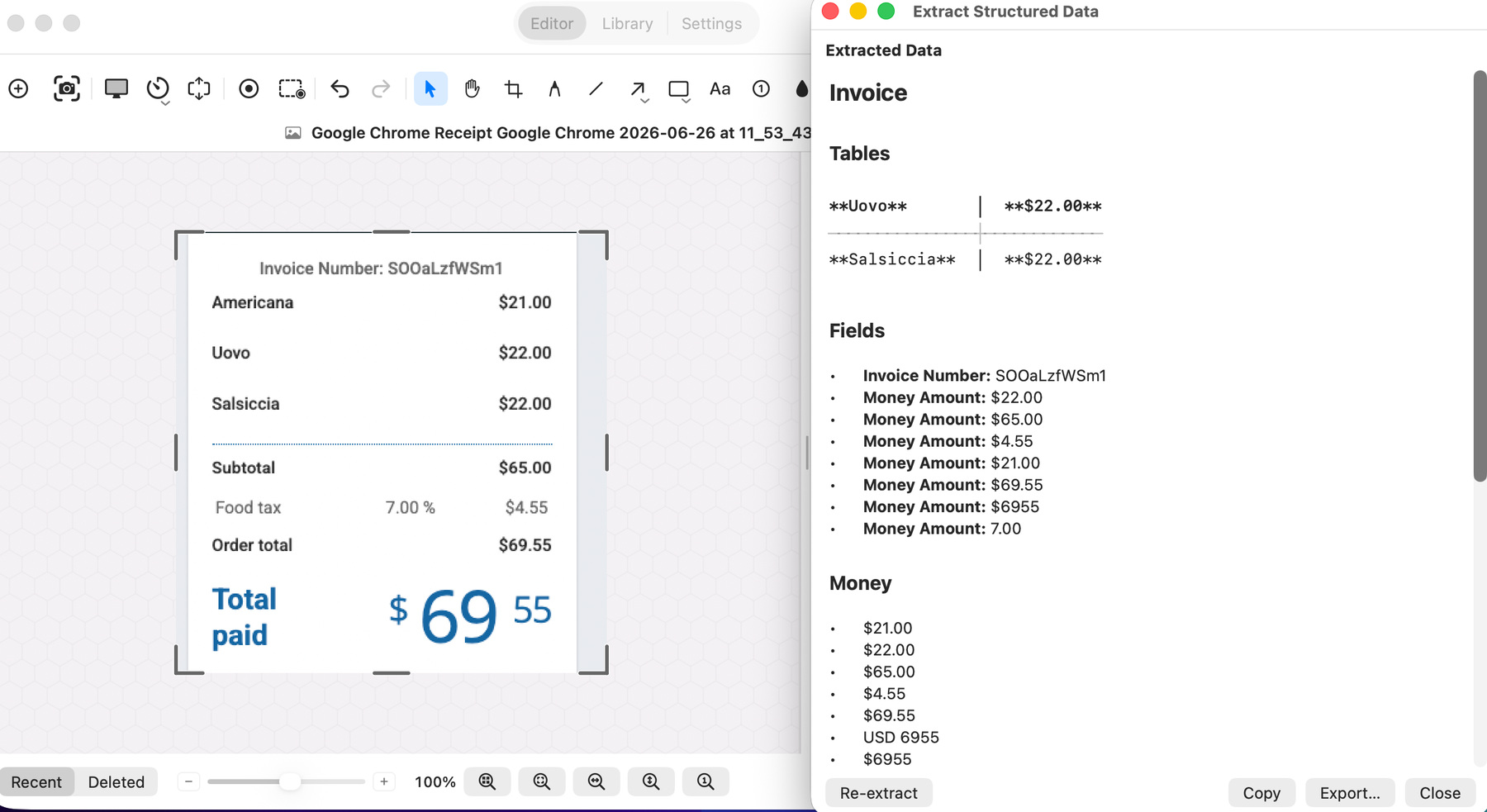
-
Deliver — copy the extracted text into your spreadsheet, ledger, or expense tool. For a plain text grab rather than structured fields, OCR Live Text lets you select straight off the image.
Combine with
Section titled “Combine with”Protect & share before you forward a receipt to anyone — a quick Smart Redact pass covers the card number and address.