
Smart Redaction
Smart Redaction scans a capture for sensitive content and proposes redactions for you to review. All detection runs on your Mac — nothing is sent anywhere.
What it detects
Section titled “What it detects”Three things run at once, and it helps to know which one is catching what.
By shape. Values that validate on their own: credit-card numbers (Luhn-checked, with cardholder name and expiry), bank routing numbers (ABA checksum), IBANs, crypto wallet addresses, VINs (ISO 3779), Social Security numbers, passport machine-readable zones, email addresses, phone numbers, postal addresses, IPv4 and IPv6 addresses, 2FA backup codes and recovery-code grids, and money amounts on financial documents.
Also by shape: API keys and tokens — AWS, Stripe, GitHub, GitLab, Google,
Slack, OpenAI, Anthropic, SendGrid and Twilio keys, JWTs, Bearer tokens, URLs
with credentials embedded, other high-entropy strings, and private keys —
BEGIN … END blocks including the key material itself, not just the banner
lines.
By label. A field name with a value beside, below or after it. The vocabulary is drawn from HIPAA’s 18 identifiers, PCI, the GDPR’s special categories, Microsoft Presidio and Google Cloud DLP, and covers:
- Identity — passport, national ID, driver’s license, visa, SSN, SIN, tax ID, TIN, date and place of birth, nationality, issuing authority, VIN.
- Financial — account number, IBAN, routing number, sort code, card number, cardholder, expiry, SWIFT/BIC.
- Health — medical record number, patient, diagnosis, ICD-10 and CPT codes, NPI, health plan, member and beneficiary ID, insurance, allergies, medication, immunization, blood type, blood pressure, heart rate, height, weight, BMI.
- Special categories — ethnicity, race, religion, gender, sex, sexual orientation, marital status.
- Legal, claims and ops — employee ID, case, docket, policy, claim and invoice numbers, ticket, incident, envelope and document ID, work order, police report, license plate, odometer.
- Travel and shipping — booking reference, PNR, record locator, confirmation, reservation, tracking number.
- People — full, first and last name, customer, account holder, contact, emergency contact, guardian, claimant, tenant, landlord, buyer, seller, borrower, applicant, insured, student.
- Money — salary, compensation, wage, income, pay.
- Credentials — password, API key, secret, access token, client secret, credentials, verification code, OTP, passcode, meeting ID.
By name. An on-device recognizer for people, organizations and places that no pattern describes.
Screenshots of config files and API responses
Section titled “Screenshots of config files and API responses”A structured file writes its fields differently — "password": "hunter2" — and
the quote between the key and the colon is enough to stop a prose label rule
matching. Those are recognized in their own right, including keys written
snake_case or kebab-case (tax_id, vpn_password, github_token), along
with fields that appear almost only in this form:
PIN, CVV/CVC/CSC, security question and answer, mother’s maiden name, refresh, session, bearer and ID tokens, session ID, authorization, client ID, app secret, private, encryption and signing keys, webhook secret, storage key, service account, connection string, database URL, URI and DSN, recovery and backup codes, username, login and user ID, postal code and ZIP, hostname, MAC address, private and public IP, and VPN credentials.
The enhanced on-device model
Section titled “The enhanced on-device model”For detection by meaning rather than pattern, Sealshot offers an enhanced on-device redaction model (~400 MB, Apple Silicon). The first time it would help, Sealshot asks before downloading — decline and the built-in detectors keep working. The model is document-aware: it recognizes what a financial statement or an ID card is, and applies detection tuned to it. Manage it (download or remove) in Settings → On-Device AI.
On macOS 26 with Apple Intelligence, an optional Thorough scan toggle adds a final Apple Intelligence pass to catch sensitive items the detectors miss — slower, but more complete.
Running a scan
Section titled “Running a scan”- On demand — click the Smart Redact button in the editor toolbar. If nothing sensitive is found, the button briefly shows Nothing found. When a focus area is set, the scan covers just that region.
- Automatically — turn on Scan captures automatically in Settings → On-Device AI → Smart Redaction (off by default) and every capture is scanned as it opens.
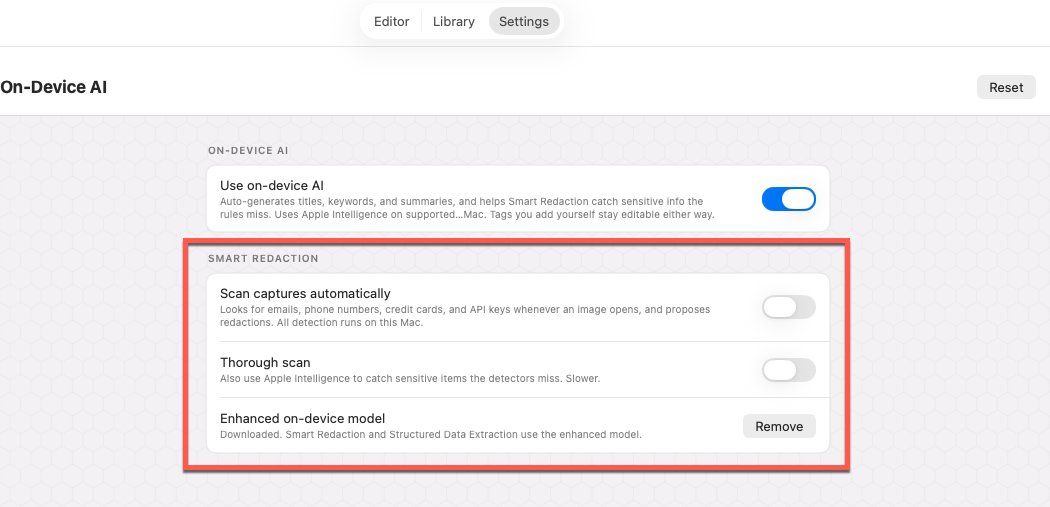 Automatic scanning, the enhanced model, and Thorough scan live in
Settings → On-Device AI.
Automatic scanning, the enhanced model, and Thorough scan live in
Settings → On-Device AI.
Reviewing and applying
Section titled “Reviewing and applying”A scan opens the Smart Redaction panel listing everything found. Each row leads with the flagged text (masked — only the first and last few characters), plus its category and why it was flagged.
High-risk items start checked — card numbers, keys and tokens, IDs, emails, phones, addresses. Lower-confidence finds (names, organizations, locations) start unchecked so you stay in control. Select all / Deselect all flip the whole list, and hovering a row spotlights the matching region on the capture. Then press Apply; Cancel dismisses the panel without changing anything.
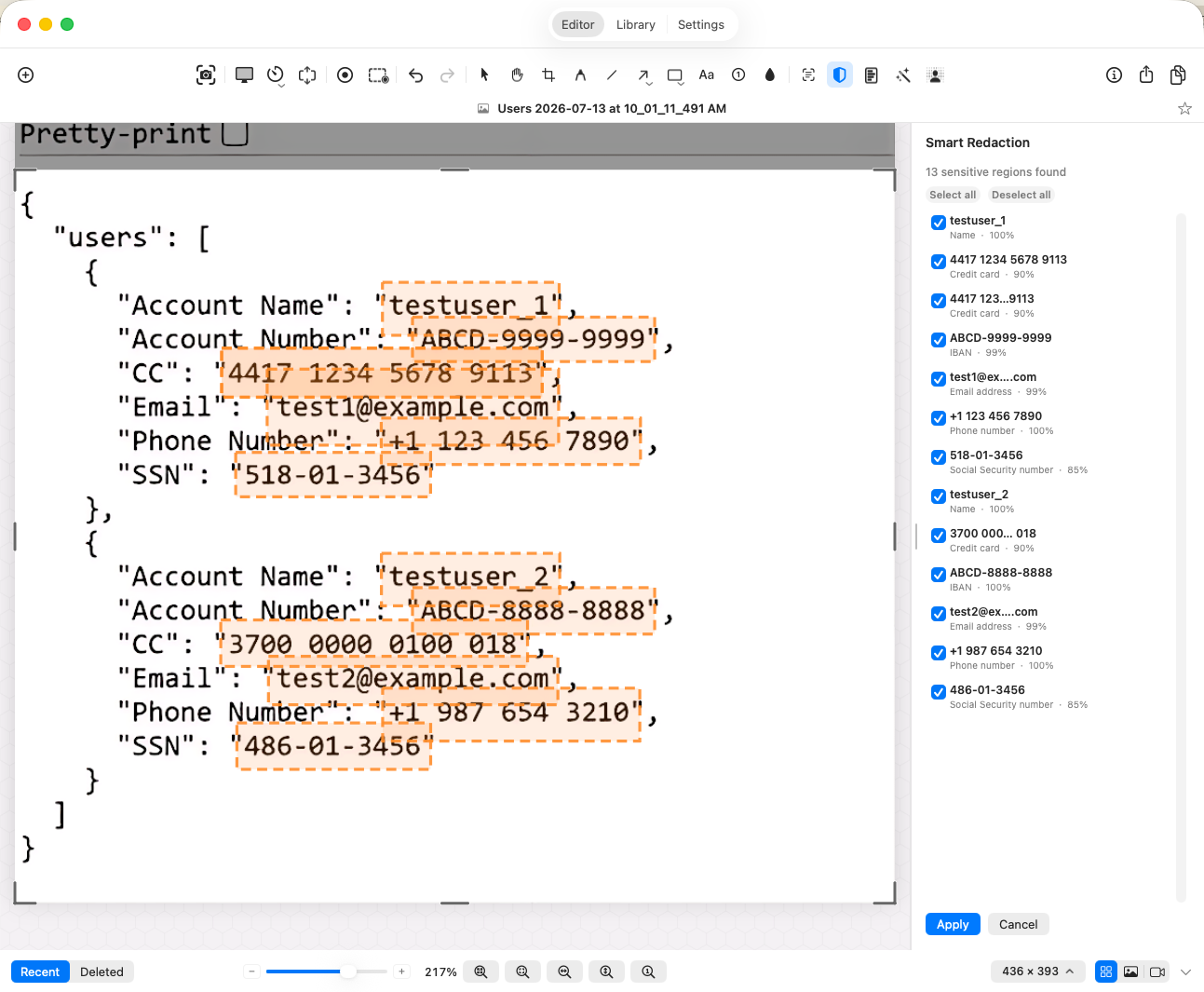 High-risk items pre-checked; hover a row to see where it is.
Applied items are covered with a solid fill, so the text underneath is unrecoverable in the exported image. They’re added as regular blur annotations in one undo step, so a single ⌘Z removes them all, and you can select, move, or delete any of them afterward like other annotations.
That reversibility is the thing to keep in mind when you share: a redaction is
an annotation over the capture, and your .seal keeps the original beneath it
so you can undo. Flattened exports — PNG, JPEG — contain only the redacted
pixels, which is what makes them safe to send. See
what actually gets shared.
Redacting manually
Section titled “Redacting manually”For anything Smart Redaction doesn’t catch — faces, logos, handwriting, images — paint over it with the blur tool using Solid fill, which leaves nothing recoverable in the exported image.