
Install & permissions
Sealshot is a privacy-first screenshot and screen-recording app for macOS. Everything — capture, recording, text recognition, redaction, AI metadata, search — runs on your Mac. Nothing you capture is uploaded, there’s no account, and there’s no telemetry.
Requirements
Section titled “Requirements”Sealshot runs on macOS 14 (Sonoma) or later, on both Apple Silicon and Intel Macs (universal binary).
Everything core works the same on both: capture, recording, the editor, OCR and search, and Smart Redaction’s built-in detectors. Two extras need newer hardware — the enhanced redaction model requires an Apple Silicon Mac, and the Apple Intelligence features (generated summaries, smart search, Thorough scan) require macOS 26 on an Apple Intelligence-capable Mac. On Intel, Sealshot automatically uses its built-in on-device processing instead. See Which Macs run what.
Install
Section titled “Install”- Download the latest
.dmgfrom seal-shot.com. - Open the
.dmgand drag Sealshot into your Applications folder. - Launch Sealshot from Applications.
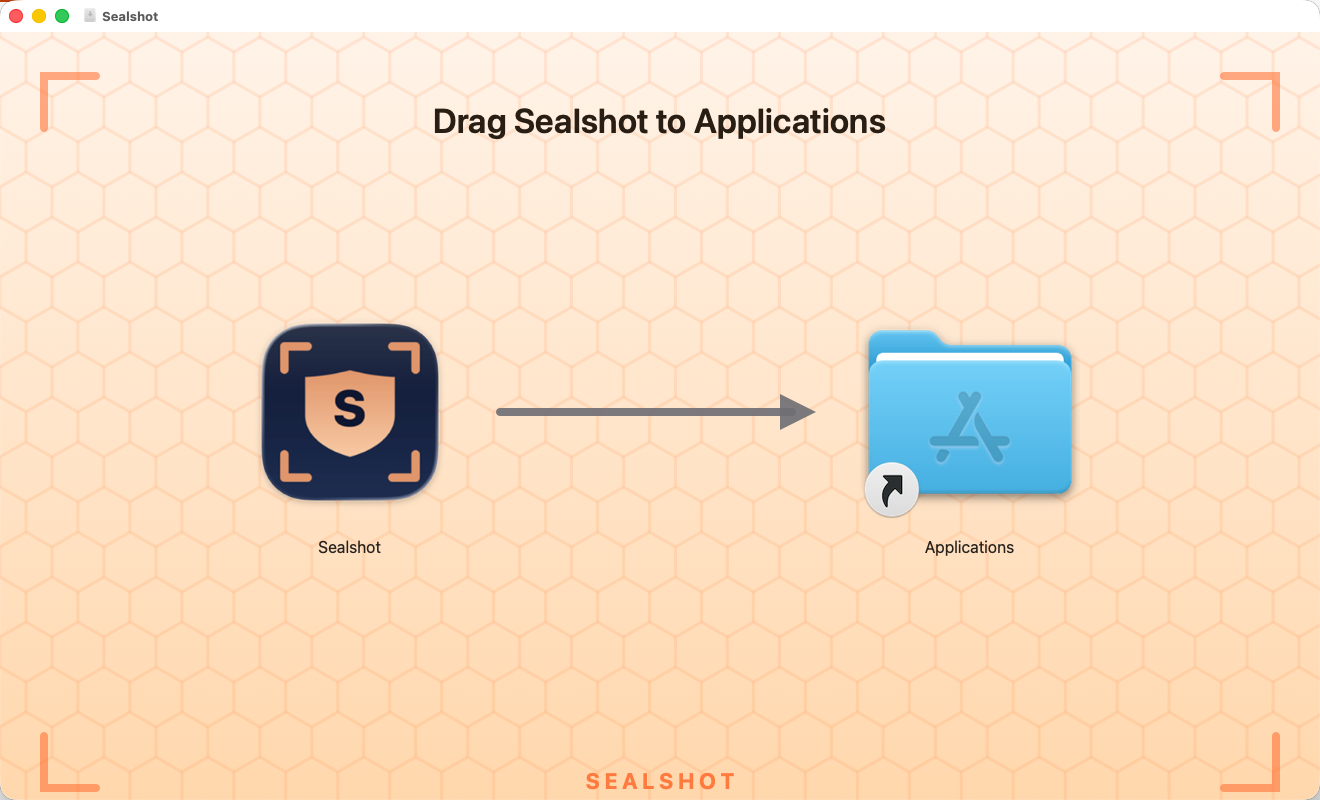 Drag Sealshot into Applications to install.
Direct downloads are signed and notarized by Apple, so they launch without Gatekeeper warnings, and they update themselves automatically via Sparkle.
Sealshot is free to use — every feature, no account needed, nothing that expires. Donating any amount supports the work; tick “I’ve donated” in Settings → Support and the app’s occasional reminder stops.
Grant Screen Recording permission
Section titled “Grant Screen Recording permission”The first time you capture, macOS asks for Screen Recording permission — every screenshot app needs it. Sealshot uses it only while you’re taking a capture, and the pixels never leave your Mac.
If you missed the prompt, enable it manually in System Settings → Privacy & Security → Screen Recording, then relaunch Sealshot.
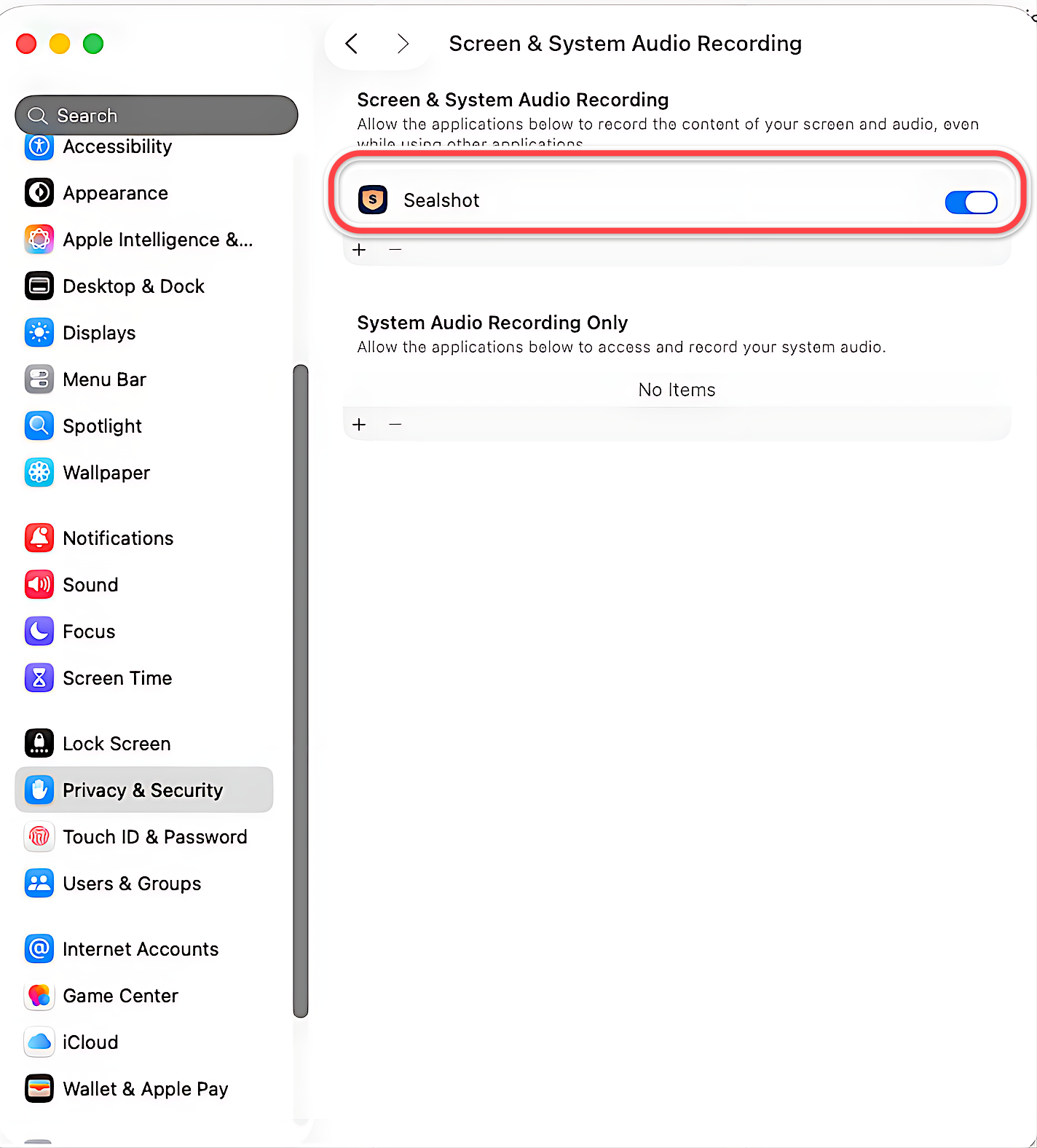 Turn on Sealshot under Screen Recording, then relaunch.
Settings → Permissions shows the live status of all three, each with a button straight to the right System Settings pane.
Next: the parts of Sealshot.