
On-device AI
Sealshot uses on-device AI to make captures self-describing and their contents reusable. Like everything else in Sealshot, it runs entirely on your Mac — on Macs with Apple Intelligence it uses Apple’s on-device models; elsewhere it falls back to built-in rule-based processing. Nothing is sent anywhere.
Automatic titles, summaries, and Smart Keywords
Section titled “Automatic titles, summaries, and Smart Keywords”When a capture or recording lands in your library, Sealshot generates a title, a short summary, and Smart Keywords from what’s visible — plus visual tags for things like QR codes and documents. They appear in the editor’s Info panel, where the summary is yours to edit (with a Revert to Generated Summary if you change your mind).
Smart Keywords are kept separate from your own tags: generated ones are read-only and refresh over time; your tags are always yours. Search matches both.
OCR Live Text
Section titled “OCR Live Text”Select and copy text straight out of a screenshot — error messages, code, addresses — with automatic language detection, so non-Latin scripts come out right too. QR codes and barcodes are recognized as well: click one to open its URL or copy its payload. Pick the Live Text tool at the trailing end of the editor toolbar; recognition runs entirely on your Mac.
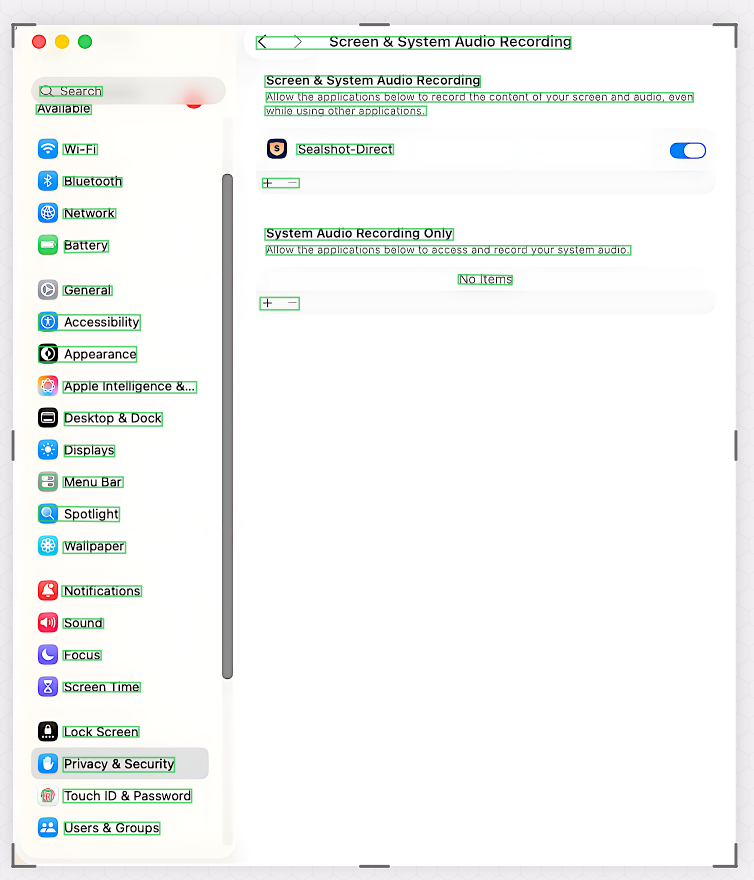 Select and copy text directly from the image.
Find in Image
Section titled “Find in Image”Search for text inside the open capture. Press ⌘F (or click the magnifying glass on the editor toolbar), type, and every match is highlighted on the canvas — Next / Previous (or Return) step through them. If you’ve set a focus area, you can limit the search to it. Esc leaves search mode.
Useful when a long scrolling capture or a dense screenshot holds one line you need — the same on-device text recognition that powers Live Text does the finding.
Extract Structured Data
Section titled “Extract Structured Data”The Extract Data pill in the editor toolbar reads the capture and pulls out its structure: tables, form fields, contacts, URLs, emails, phone numbers, addresses, amounts, dates — even stack traces.
Results open in an Extract Structured Data window as cleanly formatted text —
tables become real Markdown tables — with Copy, Export… (saved
under the capture’s name), and Re-extract buttons. The result is cached
in the capture’s .seal package, so it’s instant next time.
Tabs across the top of the window switch between the formatted views, a Text tab, and a Markdown tab showing the raw markdown — pick whichever suits where the result is going, a document or a code block. A table wider than the window scrolls sideways, and the scroll bar stays out of the way when everything already fits.
When the enhanced on-device model is downloaded, extraction uses it too, recognizing entities by meaning rather than pattern.
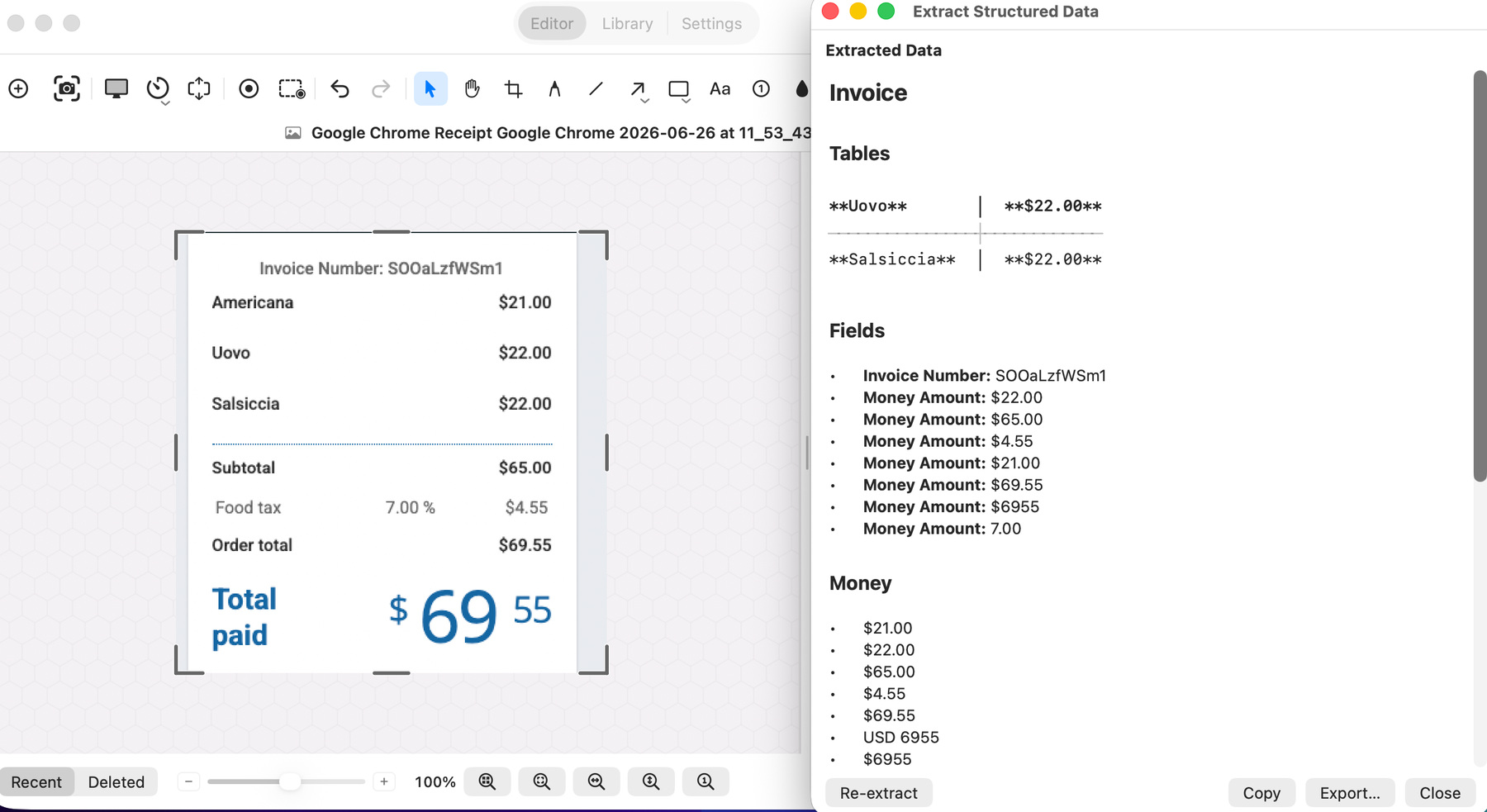 A screenshot’s tables and fields, extracted into clean, copyable text.
Enhance Clarity and Remove Background
Section titled “Enhance Clarity and Remove Background”- Enhance Clarity upscales and sharpens a capture on device, with tunable controls. Toggle between enhanced and original any time — the original is always kept.
- Remove Background cuts the subject out on device, leaving a transparent canvas or a background fill of your choice. Fully undoable.
Smart search
Section titled “Smart search”On Apple Intelligence Macs, library search quietly expands your query with related terms — searching “invoice” can also surface captures matching “receipt” or “billing”. See Library & search.
Controlling it
Section titled “Controlling it”Everything lives in Settings → On-Device AI:
- Use on-device AI (on by default) — the master switch for automatic metadata, Smart Keywords, and AI-assisted redaction and search. Turn it off and Sealshot stops generating; OCR and plain search keep working.
- The Smart Redaction options, including the optional enhanced model and Thorough scan, are here too — see Smart Redaction.
Which Macs run what
Section titled “Which Macs run what”Sealshot is a universal binary, and every feature has an on-device path — but the AI extras scale with your hardware:
| Feature | Intel | Apple Silicon | Apple Silicon + macOS 26 (Apple Intelligence) |
|---|---|---|---|
| OCR, Live Text, Find in Image, full-text search | ✓ | ✓ | ✓ |
| Smart Redaction (built-in detectors) | ✓ | ✓ | ✓ |
| Extract Structured Data | ✓ | ✓ | ✓ |
| Titles & keywords | built-in fallback | built-in fallback | Apple Intelligence |
| Enhanced redaction model | — | ✓ (optional download) | ✓ (optional download) |
| Generated summaries, Smart search, Thorough scan | — | — | ✓ |
On an Intel Mac, everything core works — capture, recording, the editor, OCR, search, rule-based redaction, and structured extraction — and Sealshot generates titles and keywords with its built-in fallback. The enhanced redaction model is Apple Silicon-only (Settings shows “Requires a Mac with Apple silicon”), and the Apple Intelligence features additionally need macOS 26 on Apple Intelligence-capable hardware.
Features degrade gracefully rather than disappearing — and whichever Mac you’re on, nothing ever leaves your machine.