
Sharing & export
Captured images and videos can be exported as packages instead of as individual items. An exported package can be protected or plain.
Export to Package
Section titled “Export to Package”Select captures (in the Library or the recent strip) and choose Export to Package… (⇧⌘E, or File menu / right-click). The dialog offers:
- Format —
.sealshare(opens in Sealshot, keeps everything editable) or.zip(opens anywhere). - Encrypt with a passcode — on by default when Enhanced Security is on.
Sealshot generates a strong passcode (like
K7M2Q-9XBHE-4FRPT-8WJ3N), with a Regenerate button if you want a fresh one. You must Copy it before you can export — the Export button stays disabled until you do, so you can’t lose the passcode by accident. Share it with the recipient over a different channel than the package; there’s no way to recover a lost passcode. - Expiry date (optional, suggested a week out) — an expired package can no longer be opened; the recipient sees when it expired.
- A hint and note for the recipient, and an option to include the original un-redacted capture (off by default — leave it off unless you really need it).
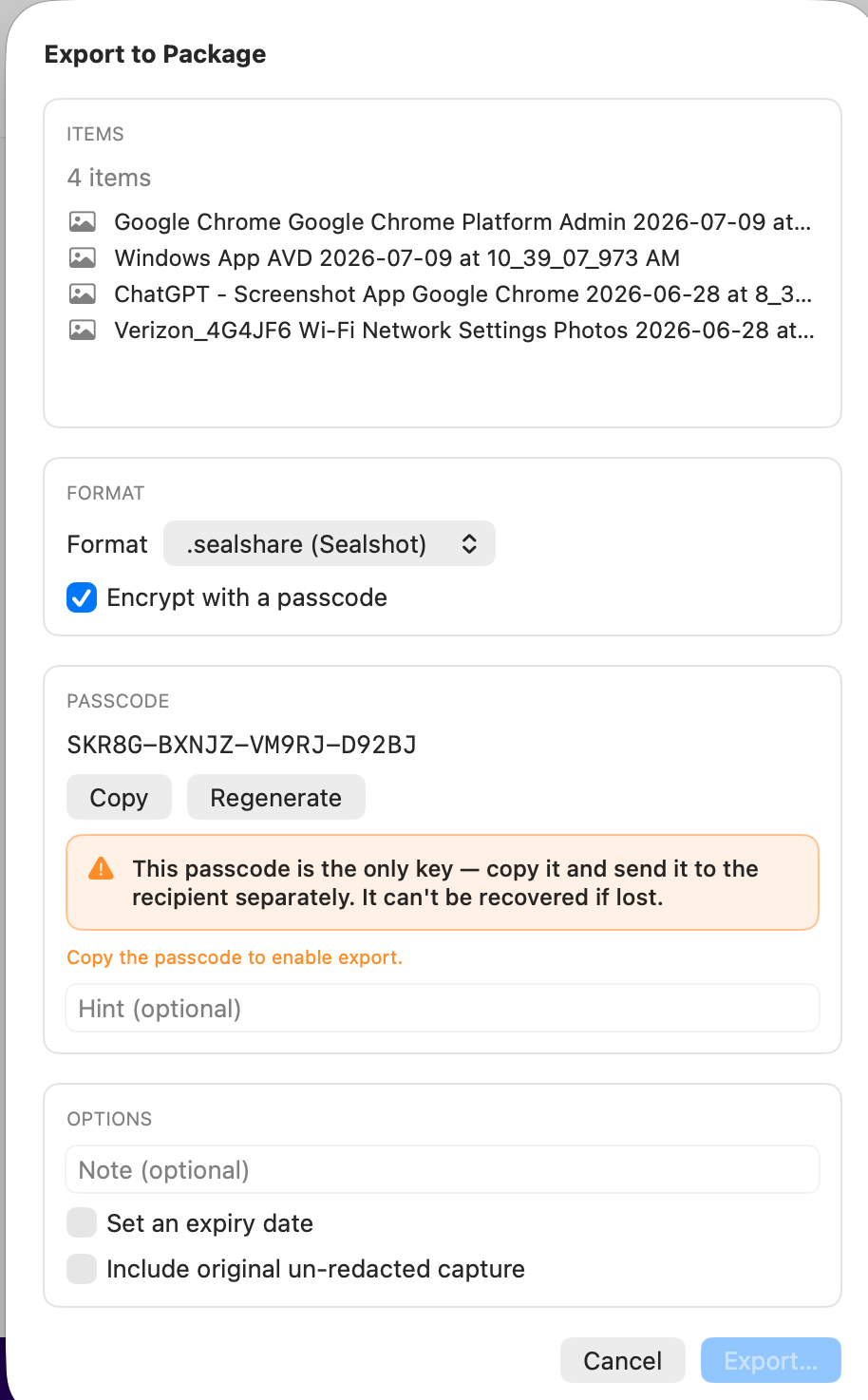 Pick a format, copy the passcode, export.
Export a collection — or everything
Section titled “Export a collection — or everything”The same packaging works at larger scales, from the Library sidebar:
- Right-click a collection → Export Collection… bundles that collection into one package.
- Right-click All Files → Export All Files… bundles your whole library — handy for AirDropping to another Mac and importing there.
Both use the same dialog and options as above, and a progress readout counts the items as they’re packaged.
Opening a package
Section titled “Opening a package”Open a .sealshare with ⌘O (File → Import to Library…), by dragging it
onto Sealshot, or by double-clicking it. Encrypted packages ask for the
passcode (showing the sender’s hint), then Add to Library or Save to
Folder….
Plain exports
Section titled “Plain exports”- Export to Image (⌘S) — writes a flattened PNG; annotations and
redactions are baked in, the editable
.sealstays intact. Select several captures to export them all to a folder. - Export to Video… — writes a recording back out as
.mov/.mp4, singly or in batch. - Drag out — drag a thumbnail from the recent strip straight into Finder, Mail, Slack, or any app.